How to Make AI UGC Video Ads That Convert (2026 Guide)
A step-by-step guide to AI UGC video ads: turn one product photo into an AI actor ad in Pixraft, then write hooks, frame for 9:16, test variants, and budget.
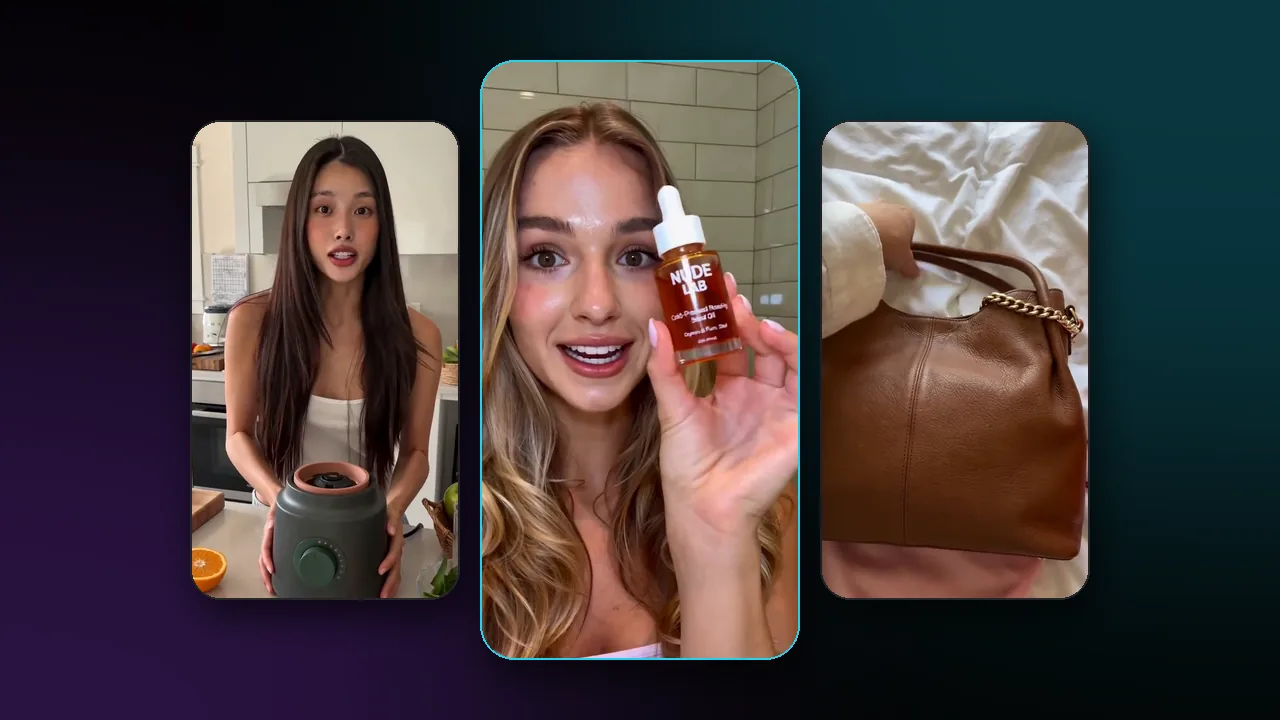
To make an AI UGC video ad, start with one clear product photo, pick an AI actor and an ad style, write a hook-first message, generate in vertical 9:16, and test several variants against each other. In Pixraft, Marketing Studio produces the actor-and-product clip from a single photo, while Audio Studio, Lip Sync Studio, and Clipping Studio handle exact voice lines, re-syncing, and captions.
No tool can promise that an ad will convert. What AI changes is the cost of trying: you can test more hooks, presenters, and formats before booking a shoot, then put your media budget behind the versions your own results support.
What is an AI UGC video ad?
UGC stands for user-generated content. A UGC-style ad borrows the look of a customer or creator talking to a phone camera: handheld framing, natural light, a direct opening line, and the product in hand. An AI UGC ad produces that format with an AI actor and a generated scene instead of a filmed creator.
In Pixraft's Marketing Studio, you upload a product photo, choose one of eight built-in AI actors or upload your own avatar image, pick an ad style, and describe the scene and message. The six styles are UGC, Tutorial, Unboxing, Product Review, Hyper Motion, and TV Spot. The AI ad generator page summarizes the same options.
What do you need before you start?
- One clean product photo: the product is large in the frame, the label is readable, and the background is simple.
- One message: a single benefit or problem the product solves, not a feature list.
- A hook: the first line or image that earns the next second of attention.
- A destination: the platform and placement, which decide the aspect ratio and length.
- Rights: permission to use the product images, logos, and any avatar image you upload.
Marketing Studio accepts up to four images in total across the product photo, an avatar, and extra references. Use the extra slots for what the model needs to see, such as a second angle of the product or its packaging.
How do you make an AI UGC ad in Pixraft?
- Open Marketing Studio and upload your product photo.
- Pick one of the eight AI actors, or upload your own avatar image.
- Choose the ad style that matches the message (see the table below).
- Describe the scene in the prompt: the setting, what the actor does with the product, the opening line, and the tone.
- Keep the aspect ratio at 9:16 for vertical feeds, and choose a length of 5, 10, or 15 seconds.
- Check the credit cost shown before you generate. It scales with the length you choose.
- Generate, review the result, and make variants by changing one thing at a time.
- Add captions, then export the versions you want to test.
| Ad style | What it looks like | Good for |
|---|---|---|
| UGC | A creator speaks to camera in casual, handheld framing | Problem-and-solution hooks and everyday-use stories |
| Product Review | The creator holds and examines the product, with detail cutaways | Showing features and build quality |
| Unboxing | Hands open the packaging, with tactile close-ups | Gifts, packaging, and first impressions |
| Tutorial | A presenter demonstrates the product step by step | Products that need a quick how-to |
| Hyper Motion | Fast camera moves and bold product hero shots | High-energy product moments |
| TV Spot | Cinematic lighting and smooth camera moves | Polished brand placements |
How do you write a hook and script for a UGC ad?
Write the opening first, because viewers decide quickly whether to keep watching. A hook can be a line, an action, or an image, and it should make sense with the sound off.
Hook patterns worth testing:
- Problem first: name a frustration your buyer already has.
- Result first: show the finished outcome, then reveal the product.
- Demonstration first: the product doing its job in the opening frame.
- Question: ask about a routine the viewer recognizes.
- Contrast: the old way next to the new way, in one shot.
Then build the rest around a single idea. For a 15-second ad, a simple structure is:
| Beat | Time in a 15-second ad | What it does |
|---|---|---|
| Hook | 0 to 3 seconds | Opens with a problem, a result, or an action |
| Proof | 3 to 11 seconds | Shows the product doing the one thing you promise |
| Call to action | 11 to 15 seconds | Tells the viewer exactly what to do next |
Keep lines short and spoken, not written. Write them as a presenter describing the product, not as a customer reporting months of use or results that never happened. A generated person presenting invented experiences can mislead viewers, so only claims the product can back up belong in the script.
Why use vertical 9:16, and how long should the ad be?
Vertical 9:16 fills the phone screen in short-form feeds such as TikTok, Instagram Reels, and YouTube Shorts, and it is Marketing Studio's default. The studio also offers 16:9, 4:3, and 3:4 for placements that need them. Check each platform's current specifications before you export.
For length, 5 seconds fits a single hook and product shot, 10 seconds fits a hook, a demonstration, and a call to action, and 15 seconds leaves room for a short review. Longer is not automatically better; match the length to the message.
How do you get exact lines, voice, and captions?
Marketing Studio builds the ad from your prompt and images, so treat the actor's delivery as part of the generation. When the ad needs specific wording, such as a product name, an offer, or a required statement, produce the voice separately:
- Generate the voice-over in Audio Studio with a text-to-speech model such as Eleven v3 or MiniMax Speech, or upload your own recording.
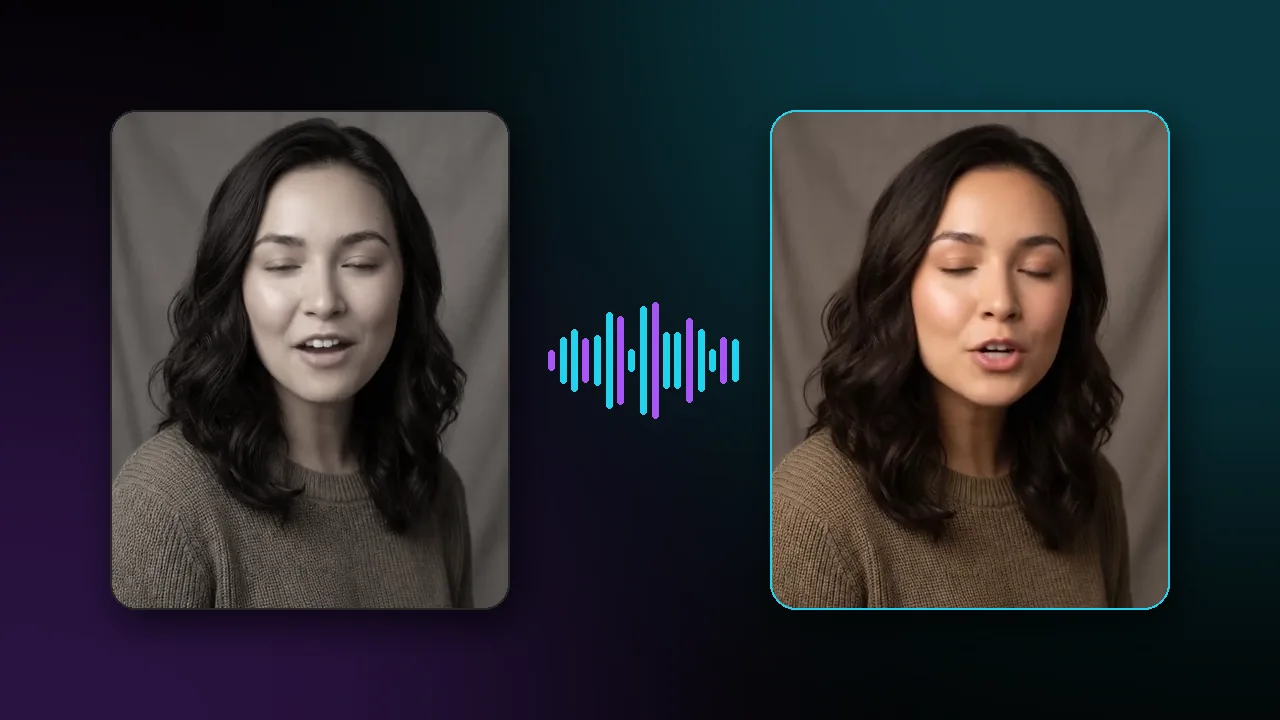
- Open Lip Sync Studio and use a video lip sync model, such as Sync Lipsync 2 Pro, to re-sync the actor's mouth to that audio. The AI lip sync page lists the options.
- Add captions so the message still reads when the video plays without sound.
For captions, Clipping Studio finds highlights in an uploaded video and can burn styled captions onto the clips you export, which suits a longer review or a batch of takes. For a single short ad, your editor or the ad platform's caption tools work too.
How do you test AI UGC ad variants?
Change one variable per variant, so you can tell what made the difference. A small test matrix might look like this:
| Test | What changes | What stays the same |
|---|---|---|
| Hook test | Three different opening lines or first shots | Actor, style, length, product photo |
| Presenter test | Two or three AI actors | Script, style, length |
| Format test | UGC, Product Review, and Unboxing styles | Hook, actor, length |
| Length test | 10 and 15 second versions | Hook, actor, style |
Run the variants with the ad platform's own testing tools and judge them on the metric your campaign is built around, not on which clip looks best in the studio. Keep the winning hook, then test the next variable against it.
Name files so the variable is obvious, for example serum-hook2-actorB-ugc-15s, and keep the prompt with each version so you can reproduce the result.
Do AI-generated ads need to be labeled?
Sometimes. Some ad platforms and jurisdictions require AI-generated or synthetic content to be disclosed, especially when realistic people appear in the ad. The rules differ by platform and change over time, so check the current policy of every platform you advertise on and use its AI disclosure label or setting where one is required. When in doubt, disclose.
Pixraft's Acceptable Use Policy also applies: do not depict a real, identifiable person without consent, and do not create deceptive deepfakes or impersonation. Use the built-in actors, or an avatar image of someone who has agreed to appear in your ads.
How many credits does a UGC ad test cost?
Pixraft shows the exact credit cost before every generation, and in Marketing Studio the price scales with the length you choose. Budget the test, not a single ad:
Test budget = variants × credits per clip × expected retries + voice, lip sync, and caption passes
A test with three hooks and two actors is six clips before retries. Generate one clip first, note its cost, and multiply. The credit budgeting guide covers retry reserves and variant matrices in more detail.
Failed generations are refunded automatically, and new accounts get 50 free credits after signup, with no card required.
Questions answered
- What is an AI UGC ad?
- An AI UGC ad is a short video in the style of user-generated content, such as a creator reviewing or unboxing a product for a phone camera, made with an AI actor and a generated scene instead of a filmed creator. In Pixraft, Marketing Studio makes one from a product photo, an AI actor or your own avatar image, an ad style, and a prompt.
- What do I need to make an AI UGC ad in Pixraft?
- One product photo. You then pick one of eight built-in AI actors or upload your own avatar image, choose an ad style such as UGC, Unboxing, or Product Review, describe the scene, and set the aspect ratio and a length of 5, 10, or 15 seconds. Up to four images can be used in total.
- What aspect ratio should a UGC ad use?
- Use 9:16 vertical for short-form feeds such as TikTok, Instagram Reels, and YouTube Shorts. It is the default in Pixraft's Marketing Studio, which also offers 16:9, 4:3, and 3:4 for placements that need them. Check each platform's current specifications before you export.
- Do AI-generated ads need to be labeled?
- Sometimes. Some ad platforms and jurisdictions require AI-generated or synthetic content to be disclosed, especially when realistic people appear. The rules vary and change, so check the current policy of each platform you advertise on and use its AI disclosure option where one is required.
- How much does an AI UGC ad cost on Pixraft?
- It depends on the length you choose, and the exact credit cost is shown before you generate. New accounts get 50 free credits after signup with no card required, and failed generations are refunded automatically. Budget for several variants, since a useful test compares more than one hook or presenter.
Sources
Related articles
Explore Pixraft Multi-Model Studio
Generate images with Nano Banana Pro and FLUX, video with Kling 3.0, Veo 3.1 & Seedance 2.5, and lip-synced audio in one workspace.
Create Free Account →