How to Make a Talking AI Avatar Video From a Photo
Turn one portrait into a talking avatar video: pick or generate the photo, create a voice, sync it in Lip Sync Studio, and add captions, plus the consent rules.
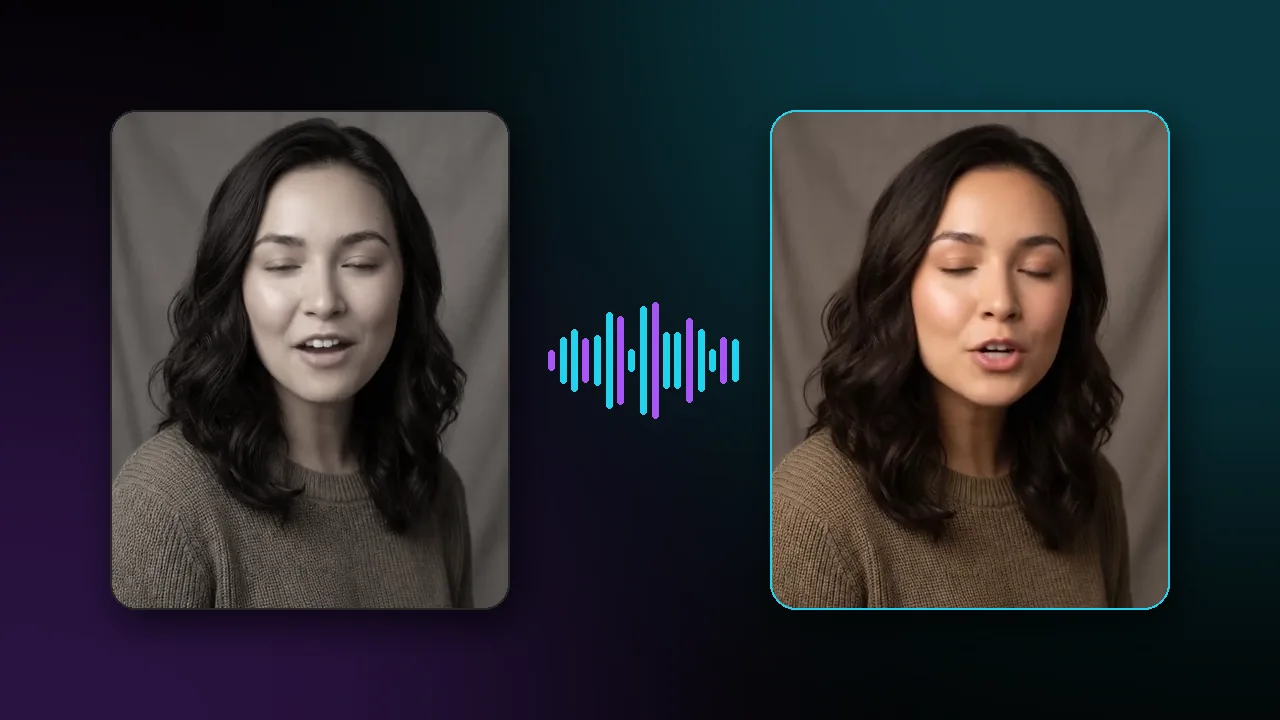
To make a talking avatar video from a photo, you need three things: a clear, front-facing portrait, a voice track, and a lip sync model that animates the face to match the audio. In Pixraft, that means Image Studio for the portrait (or your own photo), Audio Studio for the voice, and Lip Sync Studio to make the face speak, with Clipping Studio for highlights and captions at the end.
People often search for HeyGen alternatives when they want this kind of presenter video. This guide does not compare products. It shows the photo-to-talking-video workflow in Pixraft step by step, and the consent rules that apply whichever tool you use.
What is a talking avatar video?
A talking avatar video is a clip in which a face from a single still image speaks an audio track, with lip movement, and often head movement and expression, generated to match the sound. Common uses are explainers, course introductions, product walkthroughs, social posts, and localized versions of the same message.
Lip Sync Studio covers two cases. Image models animate one photo into a talking video. Video models re-sync the mouth in footage you already have, which is useful for dubbing an existing clip into another language.
What makes a good portrait for a talking avatar?
The portrait is the visual contract for the whole video, and a few minutes spent on it can save generations later.
- The face looks at the camera, or close to it, with both eyes visible.
- Lighting is soft and even, without hard shadows across the mouth.
- Nothing covers the lips: no hand, microphone, or strand of hair.
- Head and shoulders are in frame, with some space around the head for movement.
- The image is sharp enough that the mouth area is clearly defined.
- The expression is relaxed, with the mouth closed or slightly open rather than a wide laugh.
If you don't have a suitable photo, or you want a presenter who is not a real person, generate one in Image Studio. Nano Banana Pro and Seedream 5.0 both generate images and edit them with reference images, which is useful when you want the same presenter in several outfits or settings. A prompt like this is a reasonable starting point:
Head-and-shoulders portrait of a friendly presenter in her thirties, facing the camera, soft window light, plain light-gray background, relaxed expression with the mouth closed, sharp focus on the face, photorealistic.
Check the generated face before you animate it. If it closely resembles a real, identifiable person, generate again.
How do you create the voice track?
Write the script first and read it aloud once. Short sentences with natural pauses are easier to follow, and a 30-second test is quicker to review than a full script.
Generate the voice in Audio Studio, where the AI voice generator models live:
- Eleven v3 from ElevenLabs is an expressive text-to-speech model with stability and similarity controls. Its Timing variant also returns word-level timestamps, which are useful for subtitles.
- MiniMax Speech models offer emotion presets, speed and pitch controls, and a language-boost setting that covers many languages.
- You can also upload your own recording instead.
Keep music and sound effects off the voice track at this stage. Add them after the lip sync pass, so the model works from clean speech.
How do you make the photo talk in Lip Sync Studio?
- Open Lip Sync Studio and choose a model that takes an image as input.
- Upload the portrait and the voice track. Some models also accept a short prompt for expression or movement.
- Choose the resolution where the model offers it; several avatar models offer 480p or 720p.
- Check the credit cost. For models billed by length, it appears once the audio is uploaded.
- Generate, then review the mouth on sounds that close the lips, such as "m", "b", and "p", and check the first and last second.
- If something is off, change one input at a time: a cleaner portrait, a cleaner voice take, or a different model.
Which lip sync model should you choose?
Lip Sync Studio offers several model families, so you can trade quality, length, and cost per job. These are reasonable starting points, based on what each model's documentation describes:
| Need | Models to try | What the documentation says |
|---|---|---|
| One photo, one speaker | Kling V2 AI Avatar, OmniHuman 1.5, InfiniteTalk | Photo plus audio; Kling and InfiniteTalk also take a prompt |
| Longer talks | InfiniteTalk, LongCat Avatar | InfiniteTalk up to 10 minutes; LongCat Avatar up to 2 minutes |
| Two speakers in one image | InfiniteTalk Multi, LongCat Avatar 1.5 Multi | One image plus two audio tracks |
| Higher resolution | LTX-2.3 Lipsync | 480p, 720p, or 1080p output |
| Existing video instead of a photo | Sync Lipsync 2 Pro, LatentSync | Re-syncs the mouth in footage you already have |
The full list, with each model's inputs, is on the AI lip sync page.
How do you add captions and finish the video?
Upload the finished clip to Clipping Studio to cut a longer talk into short highlights and burn styled captions onto the clips you export. Cutting and exporting is free because it runs in your browser; highlight detection and captions use credits, with the price shown first. Uploads can be up to 100 MB.
If you generated the voice with Eleven v3 Timing, keep its word timestamps: they give you a head start on a subtitle file for platforms that accept one.
If you make talking avatars often, the AI workflow builder includes a Script → Voice → Lip sync template that chains the steps on one canvas and shows the total price before the run.
Whose face can you use in a talking avatar?
Only animate a face you have the right to use:
- Your own face.
- A person who has given you clear permission for this specific use, ideally in writing.
- A licensed stock or model-released image whose license allows it.
- An AI-generated person who does not resemble a real individual.
Do not make a real person appear to say something they did not say. Pixraft's Acceptable Use Policy prohibits depicting a real, identifiable person without their consent, including deceptive deepfakes and impersonation, as well as content that infringes privacy or publicity rights. Treat voices the same way: do not clone or imitate a real person's voice without their consent.
When you publish, label the video as AI-generated where the platform requires it, and consider doing so even where it doesn't. Viewers should not mistake a generated presenter for a recording of a real person.
What are the limits of talking avatars?
Lip movement follows the sound of the audio you provide, so mumbled or noisy takes give less precise mouth shapes. Extreme head angles, covered mouths, and very small faces are harder to animate convincingly. Long clips can drift in identity or expression, so test a short segment before running a full script, and review the result before you publish.
For a broader production plan that adds motion and short-form cuts, see the complete AI video workflow.
Questions answered
- Can I make a talking video from a single photo?
- Yes. In Pixraft's Lip Sync Studio, image lip sync models animate one portrait so the face speaks an audio track you provide. A clear, front-facing photo with an unobstructed mouth gives the most predictable result. You can use your own photo, one you have permission to use, or a presenter generated in Image Studio.
- Where do I get the voice for a talking avatar?
- Upload your own recording, or generate a voice-over in Pixraft's Audio Studio with a text-to-speech model such as ElevenLabs Eleven v3 or MiniMax Speech. Eleven v3 Timing also returns word timestamps that help with subtitles. Keep music and effects off the voice track until after the lip sync pass.
- Can I use a photo of someone else?
- Only with that person's clear permission for the use, or when the image is licensed for it. Pixraft's Acceptable Use Policy prohibits depicting a real, identifiable person without consent, including deceptive deepfakes and impersonation. Getting consent in writing and labeling the result as AI-generated are good practice.
- Can a talking avatar speak another language?
- Yes. Record or generate the voice in the target language, then sync it to the same portrait in Lip Sync Studio, because lip movement follows the audio you provide. MiniMax Speech models include a language-boost setting for many languages, and video lip sync models can re-sync footage you already have.
- How much does a talking avatar video cost on Pixraft?
- The cost depends on the lip sync model and, for models billed by length, on the duration of your audio. The exact credit cost is shown before you generate, and failed generations are refunded automatically. New accounts get 50 free credits after signup, with no card required.
Sources
Related articles
Explore Pixraft Multi-Model Studio
Generate images with Nano Banana Pro and FLUX, video with Kling 3.0, Veo 3.1 & Seedance 2.5, and lip-synced audio in one workspace.
Create Free Account →